

A practical walkthrough showing how AI helped design, review, harden, and deploy a lightweight Joomla system plugin for blocking selected IP addresses across an entire Joomla website.
Series: Joomla hardening, custom plugins, and practical AI-assisted development
I recently wanted a simple way to block selected IP addresses from accessing my Joomla website. I knew larger security extensions could do this, and tools such as Admin Tools Professional provide more complete security features, but I wanted to understand what a small purpose-built Joomla plugin would look like.
The goal was not to build a full security suite. The goal was much narrower:
Block specific IP addresses from accessing the entire Joomla site.Not only the administrator backend. Not only /administrator. The whole site.
This became a useful small project where AI helped me move from a rough idea to a lightweight, installable Joomla system plugin with proper guardrails, documentation, and several review iterations.

The original requirement
The initial idea was simple:
Create a Joomla plugin to restrict access from certain IP addresses.At first, the plugin was scoped to protect the Joomla administrator area only. That is a common security pattern. Many sites want to limit /administrator access to a trusted office IP, VPN IP, or static home IP.
After clarifying the requirement, I realised that this was not what I actually needed. The real requirement was:
Restrict access to the entire Joomla website from a certain IP address.That meant the plugin needed to apply to frontend pages, the Joomla administrator area, article pages, contact pages, module-rendered pages, and any normal Joomla site request.
Why I did not immediately buy a paid security component
I already knew that tools like Admin Tools Professional have similar functionality. In fact, Admin Tools Pro is probably the better long-term choice if the goal is to manage Joomla security more broadly.
A full Joomla security extension can provide features such as:
- Web Application Firewall rules
- Administrator protection
- IP blocking
- Automatic blocking
- Request filtering
- Blocked request logs
.htaccessor Nginx rule generation- Security hardening
- File change detection
However, buying and installing a full security suite just to block one or two IP addresses felt unnecessary for the immediate use case.
From a DevOps point of view, I always try to avoid adding complexity unless the requirement justifies it. The question was:
Do I need a full security platform here, or do I need a small deterministic control?
For this task, the answer was clear: a small Joomla system plugin was enough.
Design goals
1. Keep it lightweight
The plugin should only do one thing:
Check the visitor IP address and decide whether the request should continue.No database tables. No external API calls. No background jobs. No complex UI. No unnecessary framework inside the plugin.
2. Support exact IPs and CIDR ranges
Blocking a single IP is useful:
101.113.131.10But sometimes blocking a range is needed:
101.113.131.0/24So the plugin needed to support IPv4 exact addresses, IPv4 CIDR ranges, IPv6 exact addresses, and IPv6 CIDR ranges.
3. Work across the entire Joomla site
The plugin needed to run for both Joomla clients:
site
administrator
It should not interfere with Joomla CLI or console operations.
4. Default to safe behaviour
The safest default mode for my scenario is:
Block listed IPsThat means only explicitly configured IPs are blocked. The dangerous alternative is:
Allow listed IPs onlyThat mode can easily lock out the site owner if their IP changes or they forget to add their own IP.
5. Fail open, not closed
For this kind of small custom plugin, I preferred defensive behaviour:
If the IP cannot be reliably determined, do not block the request.That avoids accidental full-site outages caused by unexpected server variables or hosting behaviour.
6. Provide logging
Blocked attempts should be logged so that I can confirm whether the rule is working. The log file is written under Joomla’s logs area:
administrator/logs/site_ip_restrict.php7. Avoid overengineering
This was important. It would have been easy to turn this into a large mini-WAF with rate limiting, country blocking, user-agent rules, database-backed logs, UI reports, cron jobs, and automatic actions. But that was not the requirement.
The requirement was simply:
Block certain IPs.Final plugin structure
The Joomla plugin package was built as an installable ZIP. The final structure looked like this:
plg_system_siteiprestrict.zip
│
├── siteiprestrict.xml
├── services/
│   └── provider.php
├── src/
│   └── Extension/
│       └── SiteIpRestrict.php
└── README.mdThis follows the modern Joomla plugin structure where the plugin has a manifest XML file, a service provider, an extension class, and optional documentation.
Joomla system plugin approach
The plugin was implemented as a Joomla system plugin. A system plugin is appropriate here because IP restriction needs to happen early in the request lifecycle, before Joomla renders the page.
The plugin subscribes to the event:
onAfterInitialiseConceptually, the flow is:
Joomla starts
System plugins load
Site IP Restrict runs
Visitor IP is checked
If blocked: return 403
If not blocked: Joomla continues normally
Main configuration options
Restriction mode
Block listed IPs
Allow listed IPs only
For my use case, I use:
Block listed IPsThis means listed IPs are blocked, and everyone else can access the site normally.
IP addresses / CIDR ranges
This field accepts one entry per line:
101.113.131.10
203.0.113.55
203.0.113.0/24
2001:db8::1
2001:db8::/32
Use proxy headers
This option controls whether the plugin checks headers like:
CF-Connecting-IP
X-Forwarded-For
For a normal hosting setup, I keep this disabled:
Use proxy headers: NoThis is safer because proxy headers can be spoofed unless the server is behind a trusted proxy, load balancer, or Cloudflare configuration.
Blocked message
The visitor receives a simple message when blocked:
Access to this website is restricted from your IP address.Log blocked attempts
When enabled, the plugin logs blocked requests:
Log blocked attempts: YesThe actual decision logic
The core logic is intentionally simple. In plain English:
Read the configured IP list.
Determine visitor IP.
Check whether visitor IP matches any configured IP or CIDR range.
If mode is “block listed IPs” and visitor IP is listed, block it.
If mode is “allow listed IPs only” and visitor IP is not listed, block it.
Otherwise allow the request to continue.
The important line of logic is effectively this:
$shouldBlock = $mode === self::MODE_ALLOW ? !$isListed : $isListed;That means:
Deny mode:
  listed IP = blocked
  unlisted IP = allowed

Allow mode:
  listed IP = allowed
  unlisted IP = blocked
Guardrails built into the plugin
Guardrail 1: Do not block if the IP list is empty
if ($ipList === []) {
    return;
}
This matters because installing or enabling the plugin with no IPs should not break the site.
Guardrail 2: Skip unsupported Joomla application clients
The plugin checks only the site and administrator clients. If the request is not one of those, it returns without doing anything.
if (!$app->isClient('site') && !$app->isClient('administrator')) {
    return;
}
That avoids interfering with CLI, console, API, maintenance tasks, or command-line operations.
Guardrail 3: Validate visitor IP
The plugin validates the detected visitor IP. If the IP is missing or invalid, the plugin does not block the request. This is intentional fail-open behaviour.
Guardrail 4: Validate configured IP rules
Invalid entries should not behave unpredictably. An invalid entry like the following does not match anything:
bad-ip-hereFor CIDR rules, the plugin checks that the subnet is valid, the prefix length is numeric, the prefix length is within the valid range, and IPv4 and IPv6 are not mixed.
Guardrail 5: IPv4 and IPv6 support
The plugin uses PHP’s inet_pton() approach to compare IP addresses in binary form. This allows it to support both IPv4 and IPv6 and avoid comparing addresses of different lengths.
Guardrail 6: Proxy headers are optional
The default is:
Use proxy headers: NoOnly enable proxy headers if the hosting architecture is known and the site is behind a trusted proxy, Cloudflare, or load balancer.
Guardrail 7: Log blocked attempts, but avoid log injection
Blocked requests are logged with details such as client IP, Joomla client context, and request URI. The logged URI is sanitised by removing newline characters to avoid basic log injection issues.
Guardrail 8: Return a clean 403 response
When a visitor is blocked, the plugin returns 403 Forbidden with a simple plain-text response. It does not render the Joomla template, load extra modules, expose rule details, or provide unnecessary information.
Performance considerations
One of my concerns was whether this plugin would slow down page loading. The answer is: not noticeably, as long as the IP list is small.
Per request, the plugin does only a few operations:
- Read plugin parameters
- Get visitor IP
- Split configured IP list
- Compare visitor IP against configured rules
- Allow request or return 403
There are no database lookups, no external API calls, and no file scans. For a list like one, five, or twenty IPs, the overhead is effectively negligible.
However, if the list grows into hundreds or thousands of IPs, then the right solution is no longer a Joomla plugin. At that point, IP blocking should move closer to the edge:
Cloudflare firewall rules
Hosting firewall
cPanel IP blocker
Server-level firewall
Review iterations and rewrites
First version: administrator-only restriction
The first version restricted access only to the administrator area. That was useful, but it did not match the real requirement.
The requirement changed from:
Restrict administrator accessto:
Restrict the entire Joomla siteSo the plugin was rewritten to cover both frontend and administrator contexts.
Second version: whole-site restriction
The next version applied to both site and administrator contexts. It supported block-list mode, allow-list mode, exact IPs, CIDR ranges, logging, and an optional proxy header setting.
Third review: PHP and Joomla best practices
After that, I reviewed it against PHP and Joomla coding practices. Improvements included strict typing, cleaner IP detection, fail-open handling when the visitor IP cannot be determined, explicit IP validation, stricter CIDR validation, safer logging, cleaner 403 header handling, and README documentation.
Fourth review: avoid overengineering
The next pass was about restraint. I deliberately avoided database tables, backend reporting dashboards, automatic IP blocking, rate limiting, country blocking, user-agent rules, email alerts, scheduled cleanup, and complex log viewers.
Instead, I only cleaned up maintainability with constants for repeated values:
private const MODE_DENY = 'deny';
private const MODE_ALLOW = 'allow';
private const LOG_CATEGORY = 'siteiprestrict';
private const LOG_FILE = 'site_ip_restrict.php';
Final adjustment: Joomla form validation behaviour
During installation and configuration, Joomla’s admin form validation complained that the form could not be submitted because one or more fields were filled incorrectly. The configuration itself was correct. The IP was valid.
The issue was that the plugin XML metadata was a little too strict. Some fields had unnecessary required validation even though the runtime code already safely handles an empty list.
The fix was simple:
Remove unnecessary strict form requirements.
Keep runtime guardrails in PHP.Installation process
The final plugin is installed like any normal Joomla extension.
System → Install → ExtensionsThen upload the ZIP package:
plg_system_siteiprestrict.zipAfter installation, the plugin appears under:
System → Manage → PluginsSearch for:
Site IP RestrictOpen:
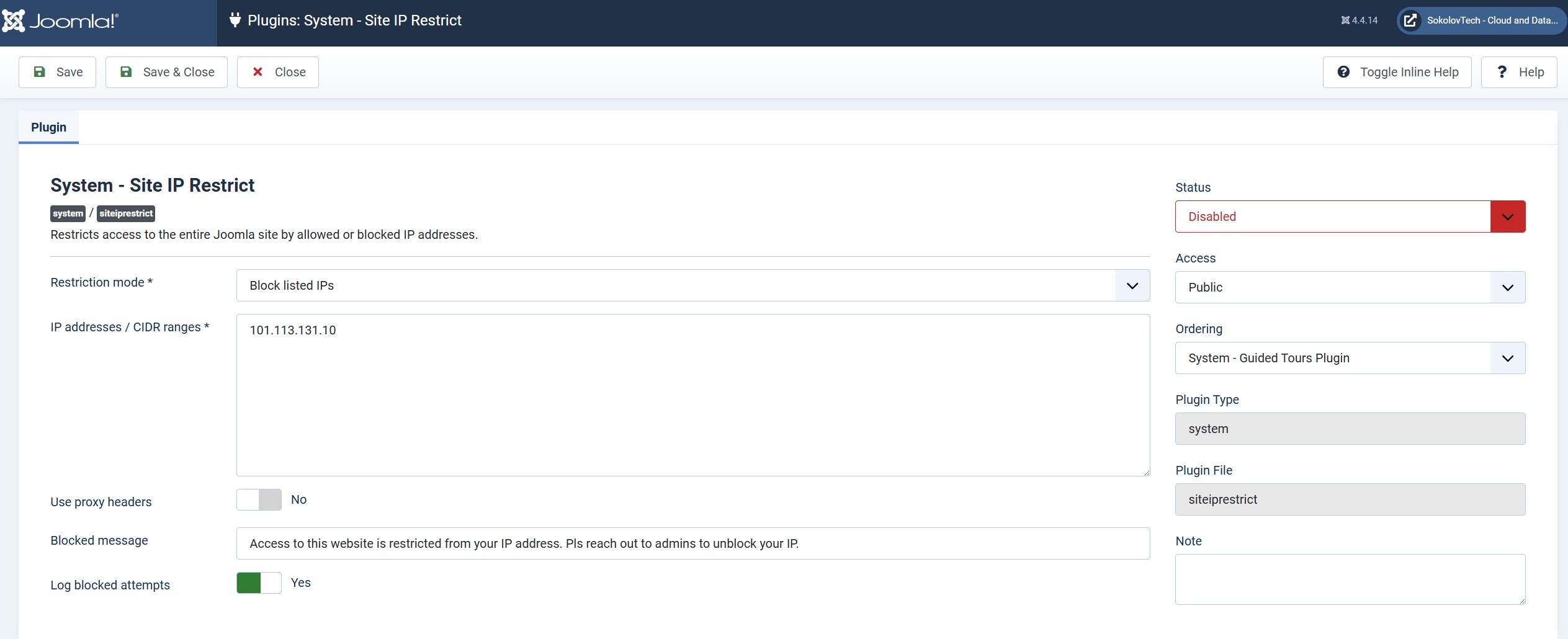
System - Site IP RestrictThen configure:
Restriction mode: Block listed IPs
IP addresses / CIDR ranges: 101.113.131.10
Use proxy headers: No
Log blocked attempts: Yes
Status: EnabledRecommended production configuration
For my current use case, the recommended configuration is:
Restriction mode: Block listed IPs
Use proxy headers: No
Log blocked attempts: Yes
Example IP list:
101.113.131.10For multiple IPs:
101.113.131.10
203.0.113.55
198.51.100.22
For a range:
203.0.113.0/24I would avoid large ranges unless I am certain.
Recovery plan
Every system plugin needs a recovery plan. This is especially true in Joomla because a broken system plugin can affect the whole site.
If I accidentally lock myself out, I can disable the plugin using hosting file manager or FTP by renaming:
plugins/system/siteiprestrictto:
plugins/system/siteiprestrict-disabledAlternatively, I can disable it in the Joomla database by updating the plugin row in the extensions table.
Testing checklist
| Area | Checks |
|---|---|
| Package structure | Manifest XML present, service provider present, extension class present, README included, ZIP installable by Joomla. |
| PHP syntax | Main PHP files checked for syntax errors. |
| XML validity | Manifest XML parsed successfully. |
| Joomla behaviour | Frontend requests, administrator requests, console exclusion, safe defaults, logging, and 403 response handling reviewed. |
| IP matching | Exact IPv4, exact IPv6, IPv4 CIDR, IPv6 CIDR, invalid entry handling, and empty list handling reviewed. |
| Operational safety | Lockout risk, proxy header risk, performance impact, recovery path, and conflicts with other IP-blocking tools considered. |
What this plugin does not do
This plugin intentionally does not try to be a full security extension. It does not provide WAF rules, SQL injection detection, XSS detection, automatic attacker scoring, country blocking, bot detection, login protection, two-factor authentication, file scanning, malware detection, security headers, or .htaccess generation.
That is by design. If I need those features, I should use a mature security product or a properly configured WAF/CDN layer.
This plugin has one purpose:
Block configured IP addresses from accessing the Joomla site.Where AI helped
AI was useful in this project, but not in the “generate random code and hope for the best” way. The value was in iteration.
AI helped with:
- Turning a rough requirement into a Joomla plugin structure
- Rewriting the scope from administrator-only to whole-site protection
- Reviewing edge cases
- Checking PHP validation logic
- Thinking through proxy header risks
- Documenting deployment guardrails
- Explaining lockout recovery
- Keeping the plugin small instead of overengineering it
The most important part was not the first generated code. The most important part was the review cycle.
As a DevOps engineer, I would not blindly deploy AI-generated code to a production website. The useful workflow was:
Define requirement
Generate initial implementation
Review assumptions
Challenge the design
Check failure modes
Rewrite unsafe parts
Validate package structure
Document recovery
Deploy carefully
Lessons learned
1. Clarify the scope early
The first version protected only the administrator area. That was technically valid, but not aligned with the real requirement.
2. Small tools still need production thinking
Even a small plugin needs guardrails. What happens if config is empty? What happens if the IP is invalid? What happens if the user enables allow-list mode? What happens behind Cloudflare? What happens if I lock myself out?
3. Avoid overengineering
A plugin that blocks a few IPs does not need a full database-backed admin console. The final solution is intentionally boring, and that is a good thing.
4. Block close to the edge when traffic volume grows
For a few unwanted visitors, a Joomla plugin is fine. For serious abuse, the better place to block is Cloudflare, the hosting firewall, or a server firewall.
5. AI is useful when paired with engineering judgement
AI helped speed up the implementation, but the important decisions still needed engineering judgement: default mode, failure behaviour, proxy trust, logging safety, recovery steps, and avoiding unnecessary complexity.
Final configuration I used
Restriction mode: Block listed IPs
IP addresses / CIDR ranges: 101.113.131.10
Use proxy headers: No
Blocked message: Access to this website is restricted from your IP address.
Log blocked attempts: Yes
Status: EnabledConclusion
This was a good example of using AI to build a small but useful operational tool.
The final Joomla plugin is lightweight, easy to understand, and focused on one job:
Block selected IP addresses from the entire Joomla website.It does not replace a full Joomla security product. It does not try to be a WAF. It does not attempt to solve every possible security problem.
But for the specific requirement - blocking a small number of unwanted IPs - it is a practical solution.
The key was not just generating code. The key was treating the plugin like any other production change: clarify requirements, review implementation, check edge cases, add guardrails, avoid overengineering, document recovery, and deploy safely.